
SYMPTOMS
You may experience the following problem in Compass if you use Compass Project Management. When you create a purchase order, you receive the following error message:
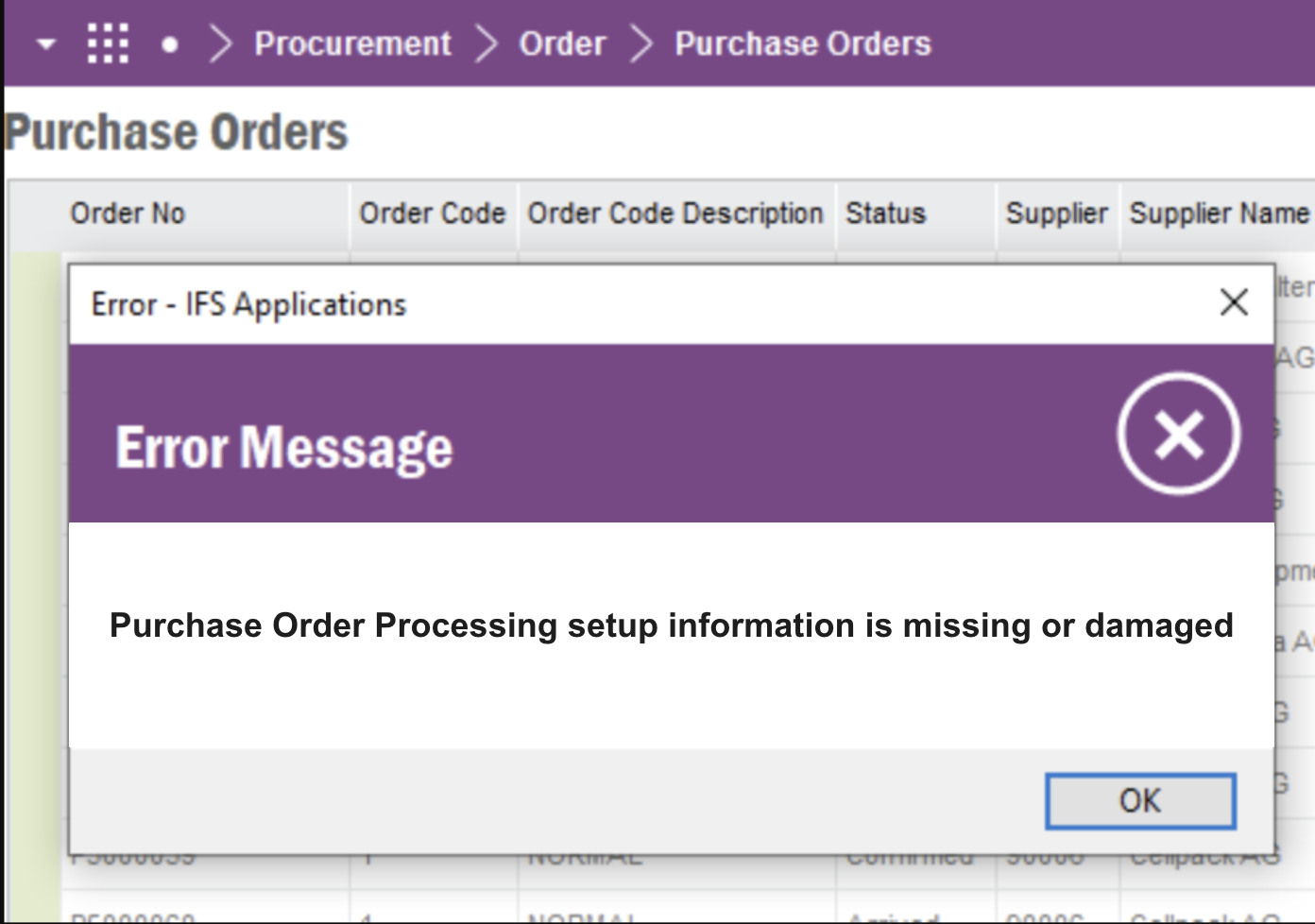
You can't create this purchase order because it is missing information that is required by Compass Project Management. Make sure the purchase in Purchase Order Entry window has a Required Date and an Inventory account.
CAUSE
This problem occurs because the Inventory Account box and the Required Date box do not contain information for the purchase order line item in the Purchasing Line Item Detail Entry window.
RESOLUTION
To resolve this problem, enter the appropriate information in the Inventory Account box and in the Required Date box for the purchase order line item. To do this, follow these steps:
|
1. |
Click Transactions , click Purchasing , and then click Purchase Order Entry . |
|
2. |
In the PO Number box, click the lookup button, and then click the purchase order for the receipt that causes the error message. |
|
3. |
Click the line item in the detail section of the window. |
|
4. |
Click the expansion arrow next to Item to open the Purchasing Line Item Detail Entry window. |
|
5. |
Find the Inventory Account box, and then type your inventory account number. |
|
6. |
Find the Required Date box, and then type the date. |
|
7. |
Click Save in the Purchasing Line Item Detail Entry window, and then close the window. |
|
8. |
Click Save in the Purchase Order Entry window, and then close the window. |
Comments
0 comments
Please sign in to leave a comment.